information technology
Leaning into the Chaos with Social Literacy
Dream Collaborations
I have a team of true collaborators among the English IV teachers at my school. They invited me to be part of their brainstorming for an upcoming unit a few weeks ago, looking for a way to “re-make” the annotated bibliography and research proposal into something that engages students, not only in research, but in true student-guided inquiry. Social justice was the topic on the table for this unit’s exploration, but the teachers were tired of the same old topics and surface-level digests of mediocre source information they received from student’s in the past.
I started my teacher inquiry interviews with the same three questions I ask all of my instructional partners:
- What are your goals for students? What do you want them to be able to do, independently, in a new and unfamiliar situation?
- We want our students to demonstrate they can understand and empathize with someone not like them; we want them to evaluate information they find in different types of source (web, academic, personal, etc) and synthesize the information to create something new that demonstrates how their own thinking has changed.
- What evidence do you need to see from students to know if they met these goal?
- A list of their sources with critical annotations demonstrating their evaluation and analysis of information
- A reflection of their own journey including insights and critical moments where they came to understand something new about the world and themselves.
- A product or demonstration that shows how they can empathize with another viewpoint or perspective
- What types of learning experiences can you imagine that would support students in reaching these goals?
- Collaborative
- open-ended
- analytical, focusing on evaluating and analyzing information
With the team’s answers from these three big, little questions I was able to pull together resources I’d been gathering from Media Literacy Week and Brittanica Digial Learning’s Blog series “Fight the Fake” written by librarian Tiffany Whitehead. These resources included videos to engage students in the topics, resources, lessons, and activities to teach students to be critical consumers of information and to be armed with the skills needed to combat the effects of fake news and misinformation in the media. Armed with new resources, I created a rough learning plan designed around Guided Inquiry Design (GID) (Kulthau and Maniotes)
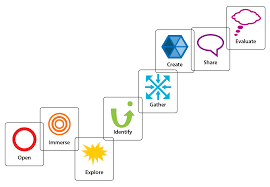
The team indicated they wanted students to gather a wide, diverse collection of information from both popular and scholarly resources. So we began with gallery walk of videos that introduced students to the topics surrounding misinformation to prepare them to evaluate sources later on in their inquiry. To support their critical and analytical thinking skills, we taught students how to use Depth of Knowledge (DOK) Question stems to scaffold their thinking about complex topics.
Media Literacy Gallery Walk
Our exploration began with a video that posed many relevant questions surrounding the impact misinformation is having on democracy.
“In a world where it feels like our opinions are so different from one another, leaning into that chaos might actually be what leads us to a better understanding of the landscape we live in.”
In this video by Mozilla, we engaged students in the questions:
- What is media literacy?
- How does media shape what and how I think?
- What opportunities does media provide us to understand one another better?
- What barriers does media present that perpetuate divisiveness and intolerance?
As they traveled around stations students, watched a brief video from this media literacy playlist and created DOK leveled questions in response to the ideas.


Students used the questions they generated from the video gallery walk in an inner-outer circle discussion. 
Our Takeaways
Students were uncomfortable in this type of discussion where their questions, not their reasoning, were the most important contribution they had to offer. They had become well-adapted at arguing their points to one another to “win” discussions. In their discomfort, we saw opportunity. Throughout the upcoming inquiry, students will be forming groups based on broad topics relating to social justice. Their success will depend upon their ability to “lean in” to the social chaos and to one another as they form questions and seek diverse perspectives.
Continuing the Exploration
Next in the social literacy inquiry– developing empathy and forming a Circle of Viewpoints with Time’s Guns in America.
From Consumers to Creators: Infographics in Social Studies

We are an information saturated society.
Information, data, and facts stream through our consciousness at surprising rates. Our students have been raised on Google with its instantaneous access to information 24/7. Immediate access, however, does not mean that our students (and most adults) have the skills and habits of mind to process that information, seek patterns, make sense, identify problems, and create solutions.
At TCEA in February, I wanted to attend a session on using infographics in Social Studies, but I ran out of time (too much to see…). I’ve dabbled with creating infographics myself for the purpose of publicizing the library’s statistics and information, but I had yet to try having students create them to demonstrate learning. I was unable to attend the session, but I was able to locate some terrific sources to help me wrap my head around how students can re-mix information and data in a visual, graphic format.
Through my Google search, I found several terrific boards on Pinterest with infographics for social studies. But, with the exception of a handful of teacher blogs, I struggled to find resources for engaging my students in an inquiry process for the purpose of creating their own infographics. Luckily, I came across Kathy Schrock’s Google Site, which provides how-to videos, rubrics, examples, and websites for creating infographics. Now all I needed was a willing teacher and a batch of curious students.
Thank goodness for professional relationships. Wednesday, I blogged about one such relationship with my Math department chair. Luckily, I had a similar relationship with a US History teacher founded on trust and like-mindedness. “Marty McFly” (he chose his own pseudonym) teaches English and US History, and so he brings with him his experiences with inquiry, research, and literacy to his social studies classes. “Marty” is also passionate about engaging his students in higher-level questioning, inquiry, and thinking in regards to his curriculum. And, he’s comfortable with experimentation when the outcome is not easily known.
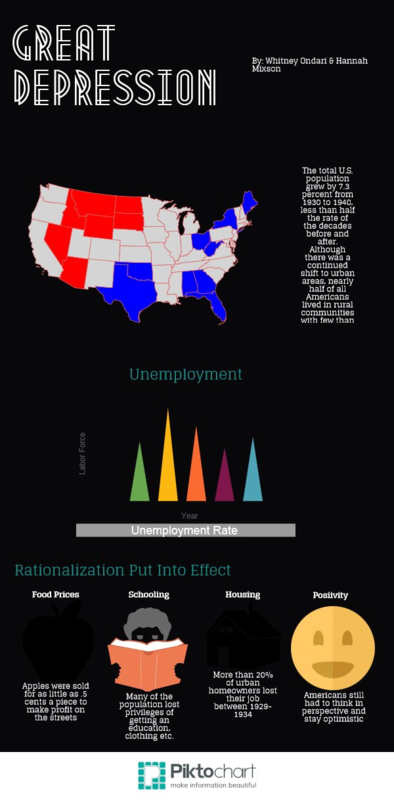
We began planning by identifying the content-specific objectives and learning outcomes. Students were wrapping-up their exploration of the Great Depression and New Deal and were preparing for the unit test. In addition to the time period objectives, “Marty” also wanted to address some of the process and critical thinking skills in the US History TEKS:
(A) create thematic maps, graphs, and charts representing various aspects of the United States; and
(B) pose and answer questions about geographic distributions and patterns shown on maps, graphs, charts, and available databases.
We agreed that students could demonstrate their understanding about an issue or topic relating to the unit AND satisfy these performance standards by having them work in small groups to create an infographic that seeks to answer a question.
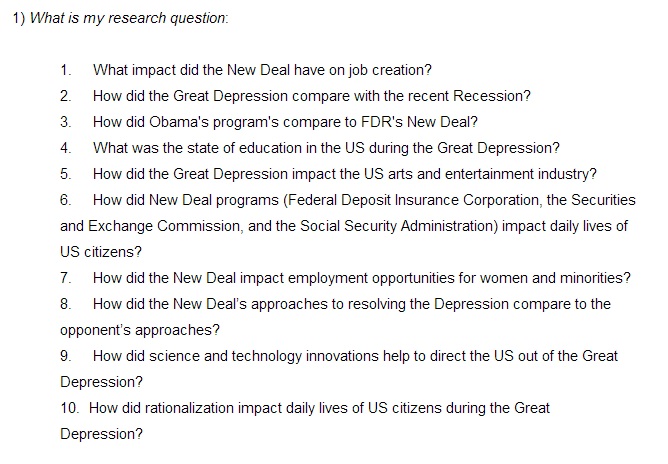
Whenever I work with students with inquiry (which is ALWAYS), I begin by thinking about which part of the inquiry process is best to engage them in. I’ve learned that it’s not always developmentally appropriate (or timely) to begin by having them create their own researchable question each and every time. For this project, “Marty” and I decided to create the questions for students since they were driven by specific content needs and formed from the US History TEKS:
Another decision we needed to make was how much direct support to provide to the whole class. Knowing that the infographic creation website was a brand-new tool for them, I struggled between taking the time to stop and walk through the process of creating one with the entire class, or allowing them to be independent problem-solvers and learners. We opted for the latter…(more on that in a moment).
To prepare for classes, I created a Google Doc with all of the directions, links, and resources, which was shared with students through the class Edmodo wall. We began the lesson by asking the question, “How does visualizing data help us understand an issue or topic?”
Using the YouTube video, “Fast Food” from “The Infographics Show” YouTube Channel, I invited students to comment on how the video helped them to remember significant facts about the topic. We made a list of all the ways we saw the creators of the video visualize data (charts, symbols, maps, graphs, etc.)
Next, we analyzed a few different infographics as mentor texts in order to define what they were. Here are some of our favorites:
Walking Debt–inspired by Walking Dead
Once students understood what an infographic was and its basic elements, I began to walk them through their research process beginning with the list of 10 researchable questions. Demonstrating the use of three of our online resources, Student Resources in Context, Gale Virtual Reference Library, and Sharpe Online Reference, I reviewed how to cite sources and take notes electronically in a Google Doc, which they could share with their group members through Drive.
Students spent the next full class period searching for sources with data and information that would help them respond to their researchable questions.
On the third day, students met in their groups to share and compare information, determine which pieces of information they would use and how they would visually represent it, and create a hand-drawn, rough draft of their infographic. (I learned the importance of a rough draft for any digital project from my early days with Digital Storytelling).
Our plan to allow students to be independent learners of the infographic creator sites backfired, when the tutorial videos posted on sites such as Visua.ly and Piktochart were blocked by our school filter (…..yep, I should know better by now…). So, we ended up spending about 10 minutes on the final day walking them through the process of creating an infographic in Piktochart.
List of Infographic creation websites:
We discovered that students needed more time to synthesize the information and create the infographic than originally planned, which ties back to our original reflection on teens as information consumers that they are so used to consuming information rather than using it to form new interpretations and solutions.
“Marty” had some interesting thoughts relating to the gap between students who successfully completed the assignment and those who really struggled,
I think this demonstrates Piaget’s theory that not all people reach the formal operational stage. Those that I knew would understand did, and those I knew who wouldn’t understand didn’t. Those that didn’t I think would need someone to walk them through step-by-step in order for them to create something we would say was a good product.
That “Marty McFly” is one smart guy…
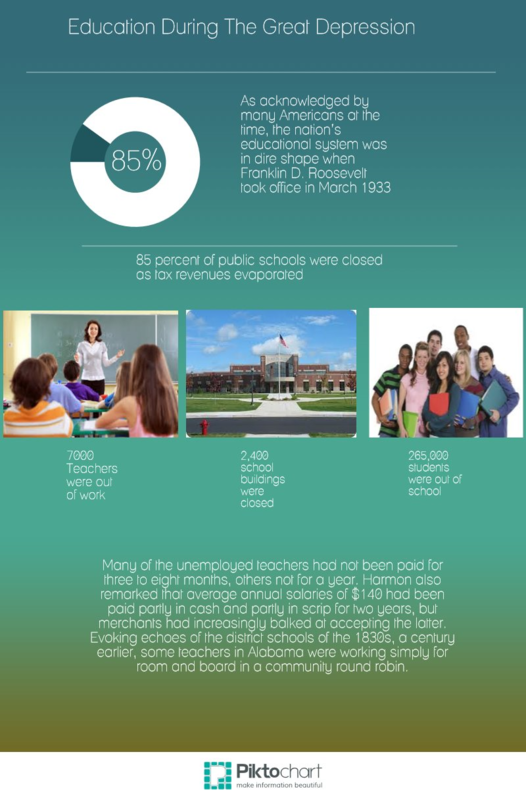
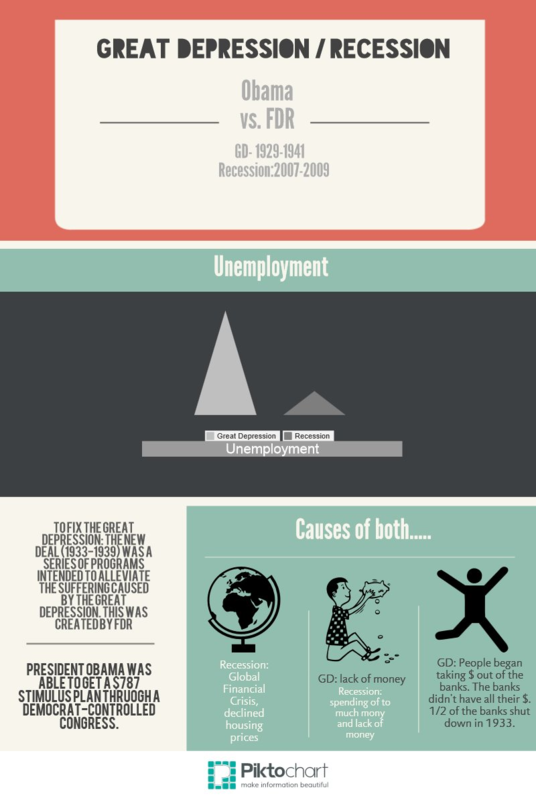
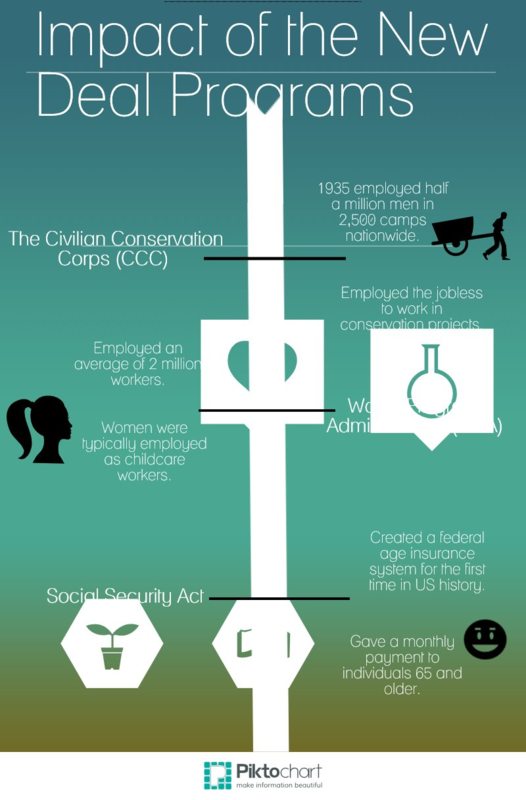
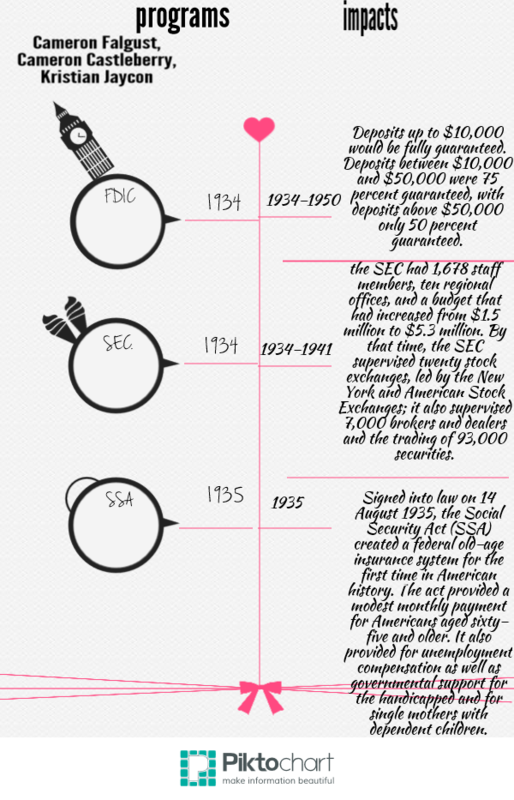
Overall, “Marty” felt that the project, “gave [students] a better look at numbers (people affected, money lost, money needed to formulate programs, etc.) so it helped them understand the enormity of the situation…it helped them learn the different New Deal programs better. It also helped them see the parallels of the recent recession.”
We both agree that had we chosen one website like Piktochart, demonstrated for all students the basic features they need to create the infographic, and provided more support and modeling of the keyword searches for various questions, then we would have seen greater completion and better products.
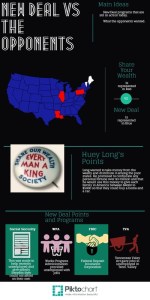
Looking at the final infographics, I have to say that I am impressed with most groups’ ability to synthesize that amount of information, identify a clear message for their graphic, and use visuals to convey that message. I do still see many who relied heavily upon text rather than images, which I find curious. Perhaps that can be addressed in the planning phase next time. I’d also like to include a mini-lesson on utilizing the images and primary documents available in our electronic collection and Creative Commons images to add another layer of content to the infographics.
My greatest take-away from this experience is that we need to have students locating and re-mixing information in various formats for the purpose of creating new solutions and messages. By learning to manipulate and represent information for a given audience, they will learn to be more discerning of the information that courses through their daily lives rather than being mass consumers.
Student Samples:
Infographics: Going Digital with Data
Tech Tuesday: Students as Information Consumers and Creators
Our students are bombarded with information 24/7/365. They forget (never learned) how to be curious and critical consumers. An inquiry stance to learning taps into our natural curiosities, building upon content area knowledge in relevant and authentic ways. A simple infographic (informational graphic) might make more of a lasting impression upon a student and his learning experience than a five page research paper or report.
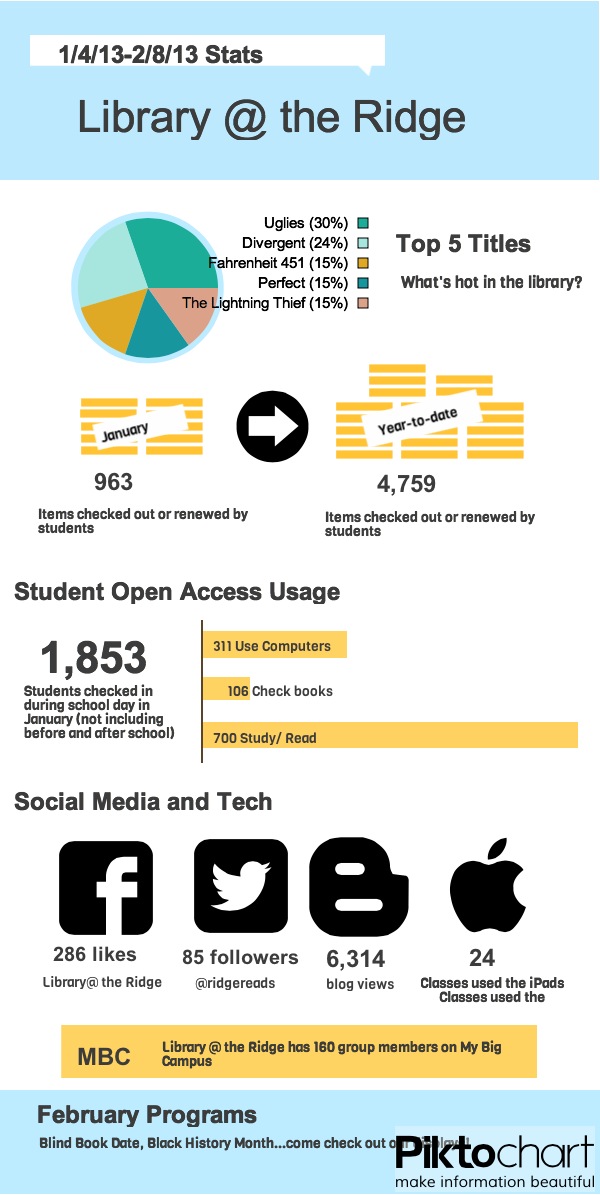 |
| Created at http://www.piktochart.com to publish the library’s statistics for January |
American Association of School Librarians (AASL) NETS-S
Adventures in iPads: Initial Deployment Woes and the Sites that Saved My Sanity
The Adventure Begins…
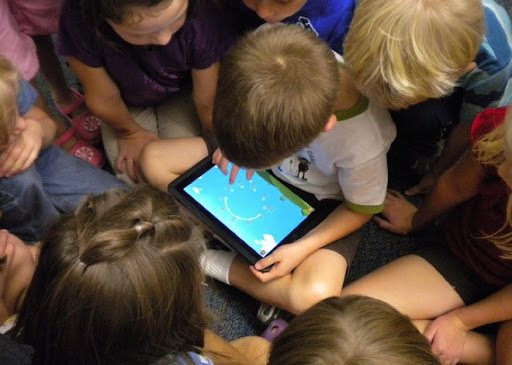 |
| 10 Biggest Questions about iPads in the Classroom |
[Enter site #1 that helped me wrap my brain about iPad deployment in schools]
http://www.scoop.it/t/ipadsineducation
A collection of deployment guides and resources for schools including a presentation on the role of iPads in schools, Apple’s VPP program, and integrating technology into instruction.
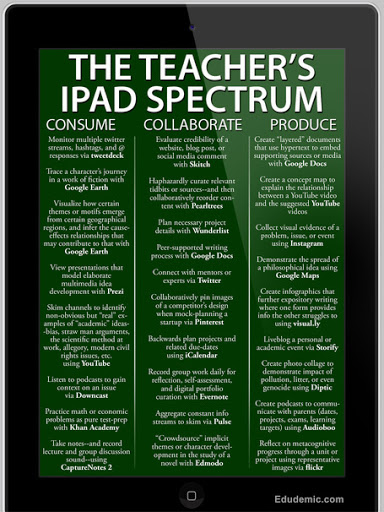
Initial roadblocks…
1) iPads are designed to be unique and personalized for their users–the functionality of the iPad (synchronized email, contacts, calendars, apps, iTunes, etc.) does not transfer to school models where iPads are used by multiple students.
 2) iPads are designed to be managed through a home computer, one at a time–Schools who purchased thirty or more iPads for classroom use struggled to painstakingly sync and manage each device, one at a time–a very lengthy and monotonous process (speaking from personal experience). Today, we have a MDM (multiple-device-manager) and a nifty little application that allows a school’s device manager (me) to upload content and manage multiple devices at one time–Apple Configurator.
 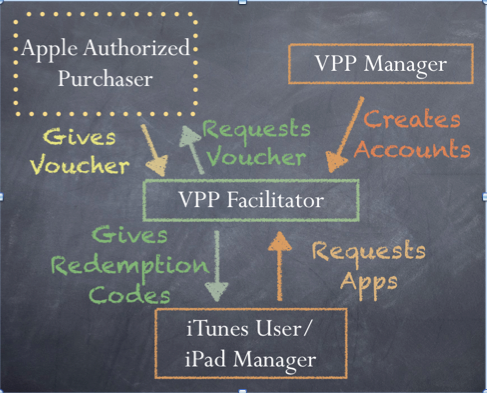 |
| http://wafflebytes.blogspot.com/2011/11/ipads-in-classroom-volume-purchase.html |
They are here!
Ummm…everything is plugged in, why aren’t the dang things charging?
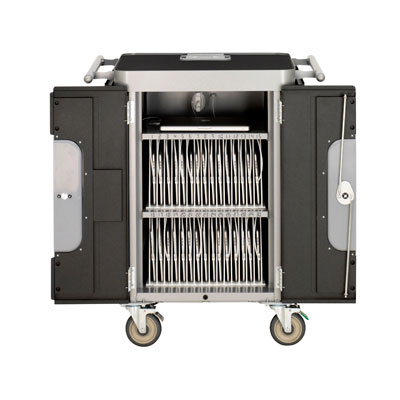 |
| PowerSync Cart |
The solution? Easy-peasy. Remove the bottom dividers, reach back, and jiggle the power cord to the cart, plug in the wall, flip the switch…and voila! We had power. This took about another hour of our time.
Two hours into our deployment day and we hadn’t even started the iTunes process.
It’s helpful when you have a working iTunes account.
How the heck do we get all of these tools to play nice?
While waiting to hear back about iTunes, we read and re-read, and read again the directions on using Apple Configurator and the Bretford PowerSync cart. [Enter website #1 that saved my sanity].
 Our iTunes delay did allow us to think about the profile we wanted to create for the devices. Apple Configurator not only allows you to upload and manage the content on the iPads, but it also allows you to enable and disable its features to create profiles. For example, the student profile we pushed out to all 30 iPads allows for use of Safari, the built in camera, and it is automatically connected to the Student wifi. Students cannot, however, change the wifi settings, delete or purchase apps, or access iCloud or photo stream. Nice!
While we are waiting…what ARE we going to put on these things?
Thank goodness for Mme. Morgan’s type A personality. The two of us split up and scoured blogs, Pinterest board, websites, and Twitter for lists of recommended apps for education.
[Enter in several more sites that helped us further explore iTunes and the world of apps]
http://appsineducation.blogspot.com/p/maths-ipad-apps.html
apps organized by content area
http://www.educatorstechnology.com/2012/06/blooms-taxonomy-for-ipad.html
apps organized by Bloom’s taxonomy
http://pinterest.com/gcisdtech/ipads/
Pinterest board for iPads in the classroom maintained by GCISD
Finally, let’s load these babies!
Final touches…
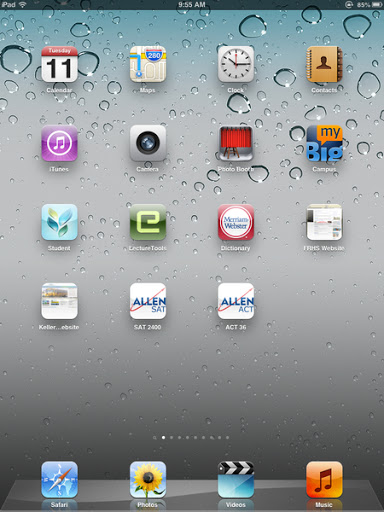
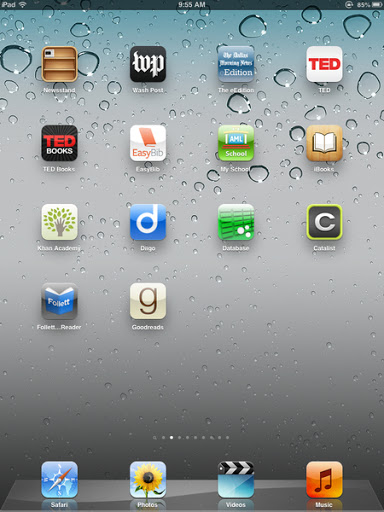
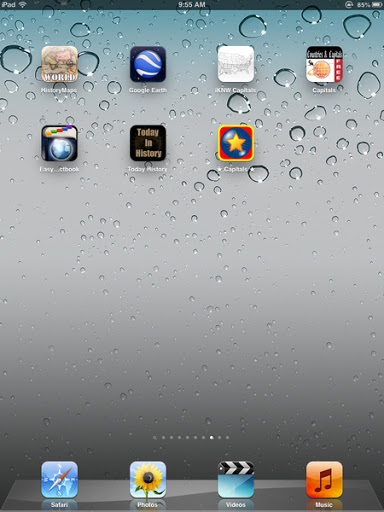
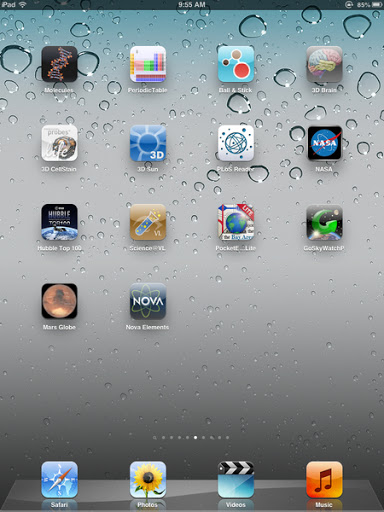
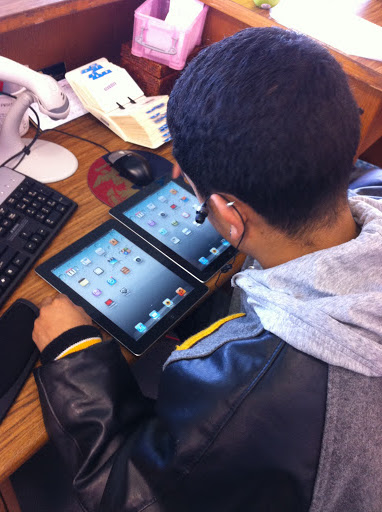 Our final step in preparing the devices for initial use involves manually organizing the apps by functionality and content onto screens so that they are classroom ready. This step must be done one-by-one…thank goodness for savvy student aides!
And the final product:
 |
| Home Screen |
 |
| Read and Explore |
 |
| Social Studies |
 |
|
Foreign Languages
|
 |
|
Science
|
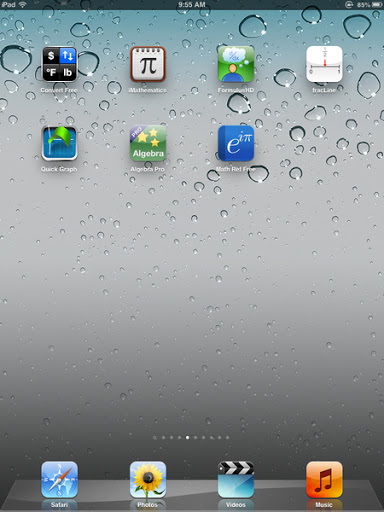 |
| Math |
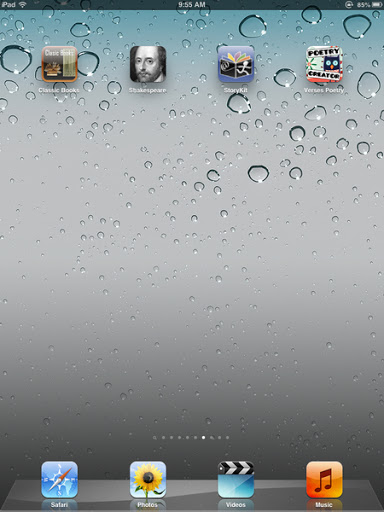 |
| Language Arts |
 Stay tuned for more adventures in iPads!
Tech Tuesday: The Flipped Classroom
Tech Tuesday: The Flipped Classroom
(heads-up to the new buzz word coming down the pipe)
Are you flippin’ kidding me?! Yet another buzz-word, topic of discussion for faculty meetings, initiatives, seeds, pilots…they just never end do they 🙂 Nor should they!
I, too, tired of the endless onslaught of programs, anachronisms, and pilots, but let’s keep some perspective and remember that the business of education cannot become static. It is in our best interest to continue reflecting, examining, and being critical of the practices and tools we bring to our students. Do they truly represent the demands and learning styles of a digitally-savvy generation?
Today I present you with a little nugget of an idea that a few of you have already started to nibble at: the flipped classroom.
Here’s some food for thought:

Don’t you just love infographics?! They make blogging so easy 🙂
Is this idea entirely revolutionary and unique? No, there are many other names and variations out there (front-loading, anticipation guides, schema theory, VESTED). What might be novel to some folks is the idea of employing technology as a tool to do these things. The infographic touts some impressive (and hard-to-believe) statistics for one flipped school. I’d be very curious to see this tried in one class for one week. My Big Campus is a terrific fit for this approach with the extensive Library resources, ability to upload YouTube videos, and learning tools such as discussions, chats, and assignment.
Heck, I’ll even pitch in and help gather resources and organize the content into MBC! Take me up on it, seriously, let’s see what happens just for one week…
For dessert, visit Khan Academy, and take a little test drive for some possible videos you could use as part of a flip:
http://www.khanacademy.org/
I even grabbed one for the electoral college to re-post just to tickle your taste buds…
Tech Tuesday: Apps for Animation
Tech Tuesday: GoAnimate and Sock Puppets

 I’ve asked Madame Morgan to be my guest on the blog this week, and she graciously accepted.
 Why did you choose GoAnimate and Sock Puppets?
What obstacles, limitations, or surprises did you encounter?
What are the benefits to using applications and web 2.0 tools for animation?
- engages students in the learning process as they synthesize content into a digital story
- supports collaboration between students through the writing process: brainstorming, story-boarding, drafting, revising, publishing
- a task with an identified audience of their peers, other students, YouTube, etc. provides relevance along with rigor
We’d love to hear your thoughts regarding possible extensions and adaptations of this project in your content area! Feel free to leave any questions or thoughts for Mme. Morgan as well.
Glolgster…not your ordinary poster project.
 Tech Tuesday #6: Glogster–Virtual Posters

Thanks to a very unwelcome visit from the stomach-flu fairy, I missed yesterdays Tech Tuesday posting :-(. So this week I am presenting Tech Tuesday on Wednesday!
Everyday I have teachers ands tudents asking me about technology tools for class presentations. They are eager to move beyond the traditional stand-and-present poster project or click-and-read PowerPoint (this makes my heart happy). Today I present Glogster, an interactive poster creator. Gloster allows the creator to create a mash-up of video, images, text, and graphics to create a virtual poster. View the VoiceThread tutorial below for a basic introduction of the educational version of glogster (edu.glogster.com).
-
Book reviews
-
Advertisements
-
“About me” presentations
-
Compare/ Contrast ideas or topics
-
Illustrate concepts
-
Extend and Deliver in VESTED
Have you or your students glogged? Tell us about it!
VoiceThread: Online Collaborative Presentation Tool
Tech Tuesday #4: VoiceThread
 We’ve all been there. Sitting in a meeting, our eyes start to cross, ears start tuning out as another PowerPoint presentation clicks, clicks, clicks through various slides. Not that PowerPoint isn’t a terrific tool to present information, but with all of the options for today’s students to synthesize and publish information in unique ways, perhaps we should begin to consider it as an option rather than the default.
Today we’re exploring a free, web-based tool that allows students to create video presentations by mixing images, videos, documents, presentations, and comments (voice and text). VoiceThread (voicethread.com) allows the user to create a project and share it with collaborators. They can then create a project together but remotely, solving the problem of when and how they will find the time and resources to create a presentation in a single file.
To demonstrate the various tools and uses for Voice Thread, Here’s a VoiceThread on VoiceThread!
What possibilities do you see for VoiceThread with your students? Leave us your comments 🙂
Remind101: A Safe Communication Tool for Students, Parents, and Teachers
Technology Tuesday #2

 |
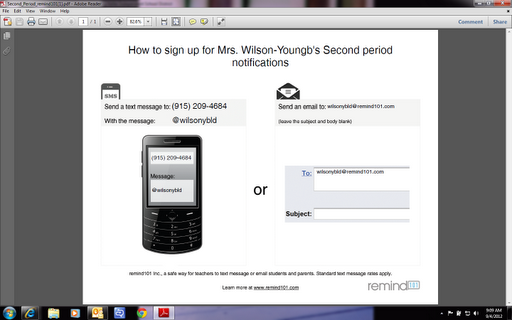
| Signing up is free and easy! |
 |
| Create classes with custom tags. students enroll themselves through text or email. Select which classes will receive the message. You can even tell it when to send the message if you want to schedule them in advance. |
 (Re)Inventing the Librarian