iPads
Experiential Learning in Algebra I: The QR Code Experiment
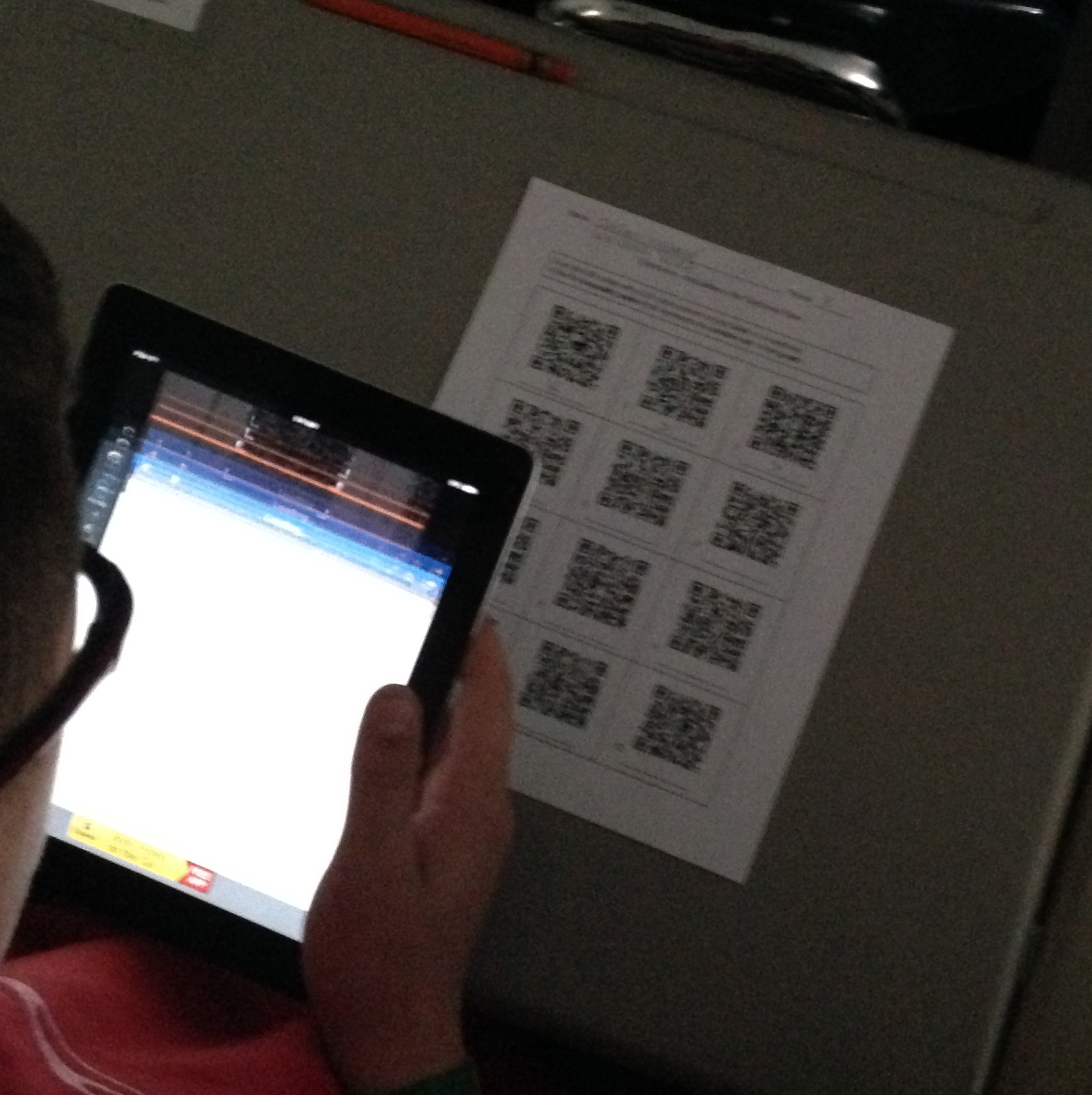
The librarian went to Algebra I class today, and I learned so much! Not only am I now solid on identifying inequalities on the coordinate plane, but I also understand much more about the importance of technology tools applied in authentic learning experiences.
As the campus Library Media Specialist, I am extremely lucky to have such powerful professional and personal relationships with faculty across all content areas. Technology integration is scary and make-me-want-to-pull-my-hair-out frustrating at times. Our professional relationships are an integral lifeline when seeking to innovate any instructional context–but especially when integrating technology.
Our principal began the year with three very specific instructional expectations for our campus:
1) Engage students in learning.
2) Seek to integrate technology in instruction.
3) Design lessons using the VESTED format (a sheltered instructional model developed by the Kolak Group)
As a campus and as individual teams we’ve faced many obstacles to meeting these goals–especially with technology integration. These barriers seem to stem–ironically– from technology, in particular our infrastructure’s capacity to support wireless connectivity for 30+ devices in a classroom and our very tightly-woven internet filtering software. When faced with these barriers, many teachers understandably quit. Those who are adaptive and responsive to these barriers, often find the support and creative solutions they need to innovate instruction through professional relationships and collaboration.
One such collaboration that has taught me tremendously has been with our Math Department Chair and Coach. Wendi and I share a platform of trust, which is paramount in any professional relationship. She and I also share like-mindedness when it comes to engaging students in learning. We have different levels of comfort and experience with technology integration, which allows for a dynamic relationship. I know next to nothing about math and instructional methods for teaching math to teenagers; she feels that she knows next to nothing about using technology when teaching math to teenagers–our collaboration is founded on reciprocal teaching and learning from one another as colleagues.
Wendi’s spark of innovation appeared in one of her own children’s Language Arts assignments that came home one day. The teacher had used QR codes to teach students about synonyms and antonyms. Wendi was so impressed with the basic premise of the assignment and her experience as a parent supporting her young learner through the assignment, that she made immediate connections for adapting it for an upcoming lesson with her Algebra I team.
She showed me the assignment–a simple table with 9 QR codes that linked to a website students used to respond to the prompt. We started by talking about her content goals for her Algebra I studnets first.
Whenever I collaborate with teachers on integrating technology with learning, I ALWAYS start with the content and expected learning outcomes. Integrating technology is not about finding ways to use iPads or QR codes in the classroom, but rather integrating technology is about identifying what tool best supports students’ learning in a given context. (p.s., sometimes the solution has nothing to do with technology!)
Wendi’s goal for her students: Identify inequalities on coordinate planes.
How would students demonstrate this skill to her? By correctly identifying a shaded graph with it’s symbol.
I heartily agreed that QR codes could be an effective tool to support students with these goals.
Wendi worked over a weekend to collect images of shaded graphs, and then we sat together to put the assignment together, which involved troubleshooting certain technological barriers.
Barrier 1: QR codes needed to link to images; however, Google Images as well as photo hosting sites such as Flickr and Tumblr are blocked by our filter. We needed a place to house the photos online that students could access through our network.
Solution: We created a folder in Google Drive, uploaded the images to the folder, changed the sharing permissions for the entire folder so that anyone within the district’s Google domain could access the link, and then used the shared links for the images to create QR codes.
Creating the assignment once we had all the images took about 20 minutes. I then showed Wendi how she could make a copy of the assignment’s Google Doc to use as a template for future assignments, saving her time in the future with formatting.
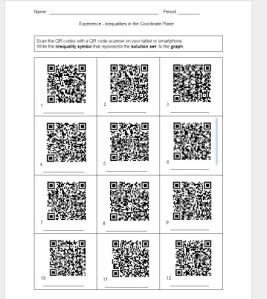
Wendi shared the assignment through Google Drive with her Algebra I team and scheduled the cart of iPads for each teacher.
We were excited to see how students and teachers responded to the activity.
The day of the assignment, Wendi and one of her teachers came to me with our next unforeseen barrier.
Barrier 2: When using the QR scanner on the iPad with the devices connected to the student wi-fi network, the links were blocked–even though they linked to the district’s own Google Drive (exasperated sigh). Wendi and her teacher could have given up then and there. We had less than 20 minutes to find a solution.
One of the most important traits of a 21st Century teacher and learner is the ability to adapt and problem solve.
Solution: …I may have found a loophole to the wi-fi issue, which I cannot entirely disclose…let’s just say I applied a little creative compliance to find a network solution…
I asked the first teacher to try the activity with students if I could stay and help support her and her students. That way I could be available to trouble shoot anymore barriers or obstacles that may arise. Since we were using the district’s Google Drive domain, it was necessary for one student to log in to Google Drive the first time they scanned a code, which they adapted to very easily.
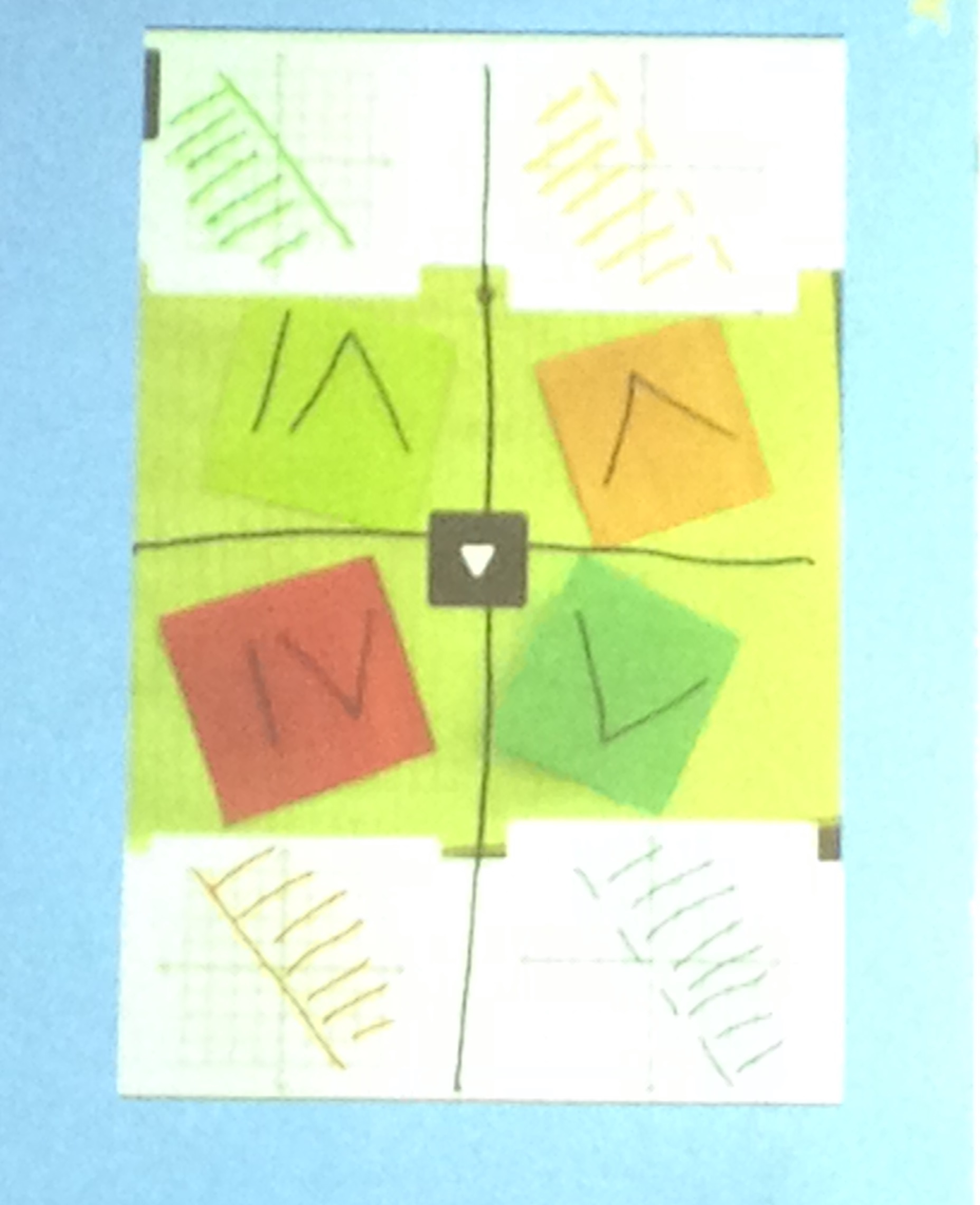
The QR activity followed a quick introduction, which drew upon students’ prior knowledge of inequality symbols. The teacher displayed a visual with four coordinate graphs and their corresponding symbol and asked students to talk to their partner about what they noticed.
As I walked through rows of students observing, I heard responses such as “if you notice where the lines are located …” and “in general, when the shaded area is beneath the line…” By inviting students to note patterns first, the teacher placed the learning experience in the hands of students rather than delivering content knowledge. What I really appreciated about this was how natural it came to students. You could tell by their willingness and openness to share their thinking out loud that this type of discourse was a regular part of their classroom experience.
She then asked them what they noticed, “Why are these two lines dashed and these two solid?” By utilizing higher-level questions to guide them to justify their responses, the teacher drew upon students’ ability to think metacognitively. Learning was happening at higher levels before technology was even introduced.

Students then received directions for the QR activity, and I walked them through scanning and identifying the first coordinate graph to ensure all devices were working appropriately and students felt successful using the iPads as a learning device.
The teacher and I walked around, actively supporting students if they had any issues with the QR code or device, and observing students’ conversations with their partners as they scanned and worked together to determine the correct symbol. The initial visual remained on the board for students to use as a key.
All students were engaged in the activity as academic discourse flowed throughout the room. As partners completed the assignment, I reminded them to check to make sure they signed out of Google Drive on the devices and cleared the scanning history in the QR reader app. I chatted informally with groups of students about their reactions to the assignment. All but one student reported that they felt they understood more about inequalities on coordinate planes after using the iPads than if we had provided the images of the graphs on the paper. The one student who didn’t feel this way said that the experience would have been the same for her without the iPads. All students reported that they felt confident in identifying the correct symbol for an inequality and commented on how fun class was that day.

Learning did not stop when the devices were dark. Even when the activity was over, I heard pairs talking about the graphs they had discussed. One pair in particular was pointing to different QR codes, recalling the differences and similarities between the graphs they linked to and the inequality symbol they recorded. Even though the visual was no longer in front of them on the screen, it was painted on their mind because of their experience with the learning task. When looking at a QR code, they still saw the graph it represented.
Without the collaboration of the team, my relationship with Wendi, the Department Chair, and the adaptability and resiliency of the classroom teacher, this lesson may have never been actualized.
How can we ensure that teachers have the collaborative relationships and support they need in order to experiment with new technologies and innovate learning for their students?
Adventures in iPads: Apps for Exploring
Tapping into the natural curiosities of our students with apps to explore information
The advent of mobile devices like iPads and smart phones have ushered in a new heightened era of information for our 21st Century students. With a swipe of a fingertip, endless amounts of information become available to us instantaneously as it streams 24/7 through our devices and into our lives . Access to information at this rate is a double-edged sword: At times a bombardment of messages, information can clutter our lives, leading to increased habits of multi-tasking, and letting go of a critical stance to information in favor of “more” stuff. On the other hand, we now have access to perspectives, events, societies, phenomena, and knowledge from around the globe. Such knowledge adds to our cultural and intellectual wealth when applied in creative ways.
For our students, Google is the main portal to the world of information. As a self-professed Google-lover, I understand the power of an advanced search engine. Do my students? Well…we’re working on that. Rather than sending students to “Google it,” I’d like to suggest a handful of apps designed for the iPad that foster academic exploration of topics, inquiries, and contexts appropriate for all content area learning. These apps utilize multiple modes of media to enhance and engage. Articles, videos, and resources are easily shared through the app feature, allowing for easy adaptation for BYOD projects where students may access the information from personal devices, including laptops, desktops, and mobile devices. I suggest utilizing these tools when introducing new topics or units to students. In a Flipped or VESTED classroom, these tools fit well into initial previewing and building background knowledge.
The following iTunes apps allow students the opportunity to explore a myriad of topics and content areas, engaging them through authentic connections to the world around them and utilizing mobile technology to access information in rapid time:
 iTunes U

According to Apple, iTunes U is the world’s largest collection of free educational content. Users can access courses from the world’s leading universities. In addition to participating in a course through readings downloaded into iBook, videos, assignments, and podcasts, students can also select from over 500,000 free lectures, videos, and podcasts. Teachers may utilize iTunes U as a tool to introduce a new concept or unit. For example, students may view a demonstration of a heat engine as an introduction to thermodynamics for an upcoming physics unit. Professor David Hoxley of La Trobe University has an entire classical physics course in iTunes U complete with video demonstrations and podcasts.
Other contributors to iTunes U include:
- Cambridge University
- Harvard University
- MIT
- Library of Congress
- Oxford University
- Stanford
- Yale
 Khan Academy

Khan Academy’s popularity is largely due to its simple, direct, and concrete illustrations of difficult subjects and complex concepts. Like iTunes U, students can subscribe to courses to continue their exploration into a specific discipline, topic, or skill.
 TED “Riveting talks by remarkable people, free to the world.”
Personalized Learning
These resources are valuable tools to provide students with opportunities to explore content related topics whether in a flipped, blended, or traditional classroom. Inviting them to explore these resources through their own curiosities supports their natural learning tendencies, allowing for a personalized learning experience. As online learning platforms continue to expand and evolve, soon, public education will need to consider how best to meet the needs of learners who can feasibly enroll him or herself in a free online course and master the content on their own through their own devices rather than the traditional educational setting. Public institutions have begun to integrate iTunes U courses into a traditional setting by creating unique courses for students to enroll in for a personalized experience.
But, it’s about baby steps and becoming comfortable with the sheer amount of information available, learning to control and manage the continual stream, and then become producers of solutions and innovations. iTunes U, Khan, and TED are leading facilitators of information collection and production.
Adventures in iPads: Initial Deployment Woes and the Sites that Saved My Sanity
The Adventure Begins…
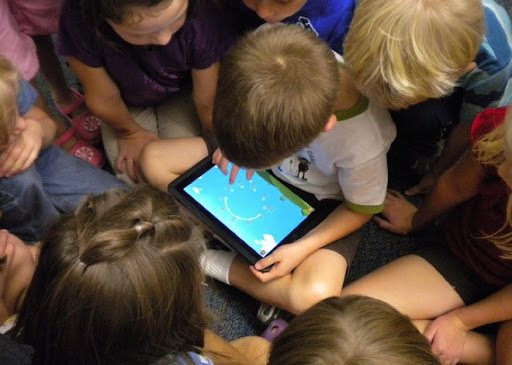 |
| 10 Biggest Questions about iPads in the Classroom |
[Enter site #1 that helped me wrap my brain about iPad deployment in schools]
http://www.scoop.it/t/ipadsineducation
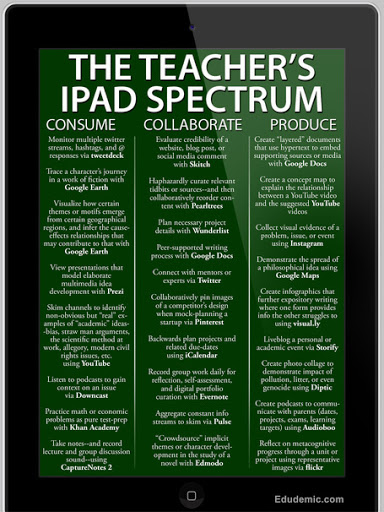
A collection of deployment guides and resources for schools including a presentation on the role of iPads in schools, Apple’s VPP program, and integrating technology into instruction.
Initial roadblocks…
1) iPads are designed to be unique and personalized for their users–the functionality of the iPad (synchronized email, contacts, calendars, apps, iTunes, etc.) does not transfer to school models where iPads are used by multiple students.
 2) iPads are designed to be managed through a home computer, one at a time–Schools who purchased thirty or more iPads for classroom use struggled to painstakingly sync and manage each device, one at a time–a very lengthy and monotonous process (speaking from personal experience). Today, we have a MDM (multiple-device-manager) and a nifty little application that allows a school’s device manager (me) to upload content and manage multiple devices at one time–Apple Configurator.
 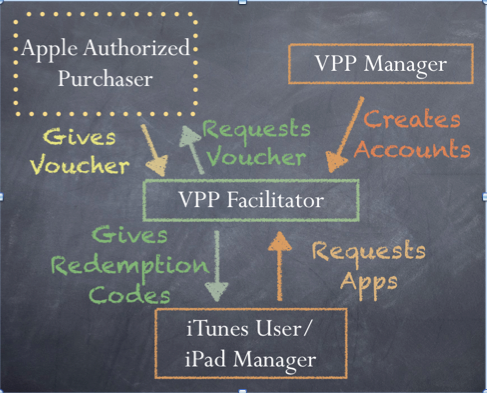 |
| http://wafflebytes.blogspot.com/2011/11/ipads-in-classroom-volume-purchase.html |
They are here!
Ummm…everything is plugged in, why aren’t the dang things charging?
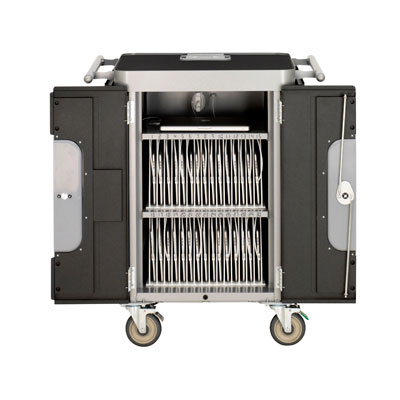 |
| PowerSync Cart |
The solution? Easy-peasy. Remove the bottom dividers, reach back, and jiggle the power cord to the cart, plug in the wall, flip the switch…and voila! We had power. This took about another hour of our time.
Two hours into our deployment day and we hadn’t even started the iTunes process.
It’s helpful when you have a working iTunes account.
How the heck do we get all of these tools to play nice?
While waiting to hear back about iTunes, we read and re-read, and read again the directions on using Apple Configurator and the Bretford PowerSync cart. [Enter website #1 that saved my sanity].
 Our iTunes delay did allow us to think about the profile we wanted to create for the devices. Apple Configurator not only allows you to upload and manage the content on the iPads, but it also allows you to enable and disable its features to create profiles. For example, the student profile we pushed out to all 30 iPads allows for use of Safari, the built in camera, and it is automatically connected to the Student wifi. Students cannot, however, change the wifi settings, delete or purchase apps, or access iCloud or photo stream. Nice!
While we are waiting…what ARE we going to put on these things?
Thank goodness for Mme. Morgan’s type A personality. The two of us split up and scoured blogs, Pinterest board, websites, and Twitter for lists of recommended apps for education.
[Enter in several more sites that helped us further explore iTunes and the world of apps]
http://appsineducation.blogspot.com/p/maths-ipad-apps.html
apps organized by content area
http://www.educatorstechnology.com/2012/06/blooms-taxonomy-for-ipad.html
apps organized by Bloom’s taxonomy
http://pinterest.com/gcisdtech/ipads/
Pinterest board for iPads in the classroom maintained by GCISD
Finally, let’s load these babies!
Final touches…
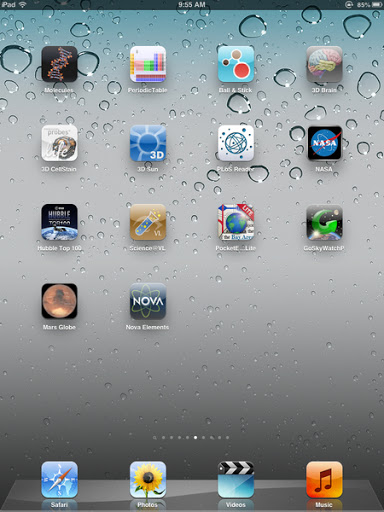
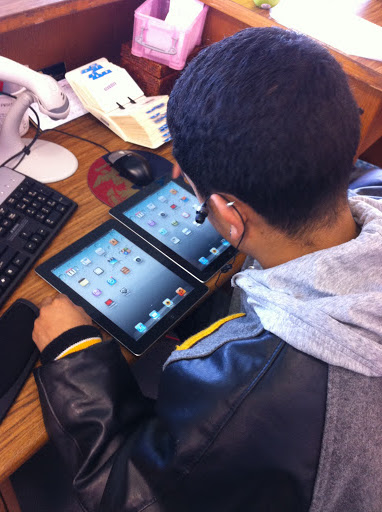 Our final step in preparing the devices for initial use involves manually organizing the apps by functionality and content onto screens so that they are classroom ready. This step must be done one-by-one…thank goodness for savvy student aides!
And the final product:
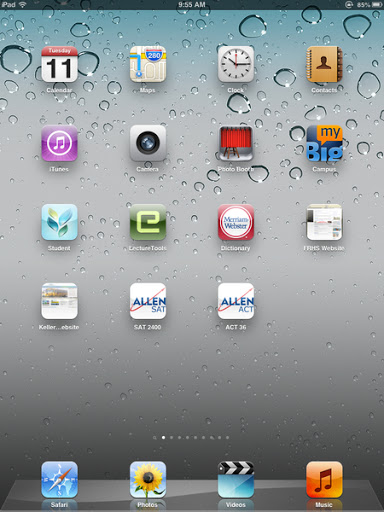 |
| Home Screen |
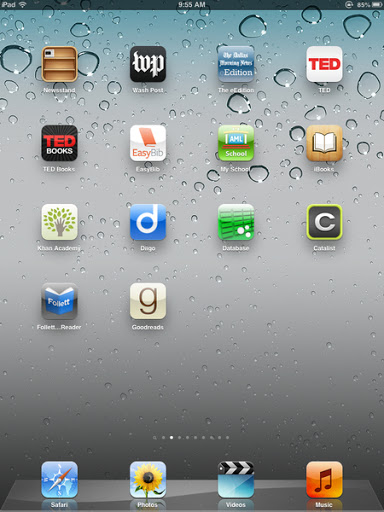 |
| Read and Explore |
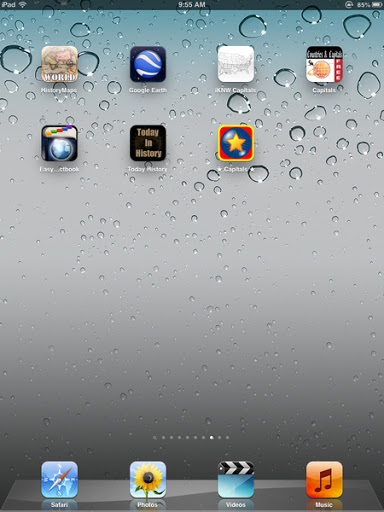 |
| Social Studies |
 |
|
Foreign Languages
|
 |
|
Science
|
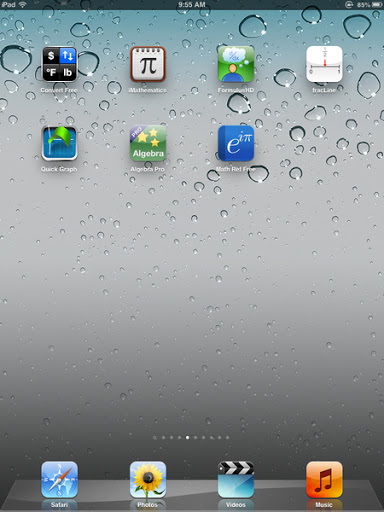 |
| Math |
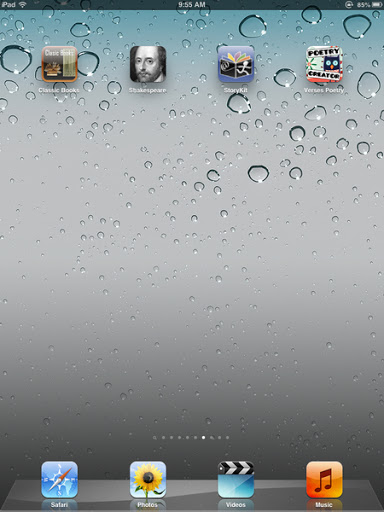 |
| Language Arts |
 Stay tuned for more adventures in iPads!

 (Re)Inventing the Librarian