tech tuesday
Tech Tuesday: Google Earth

Google Earth: More than “Miss, I can see my house!”
I remember when I first learned about Google Earth. My students and I were fascinated by typing in our street address and zoom in so we could distinguish the roof of our school and then even the fence line of our backyards! A view of our own little world and community from space provided us with a new perspective into how we related to the world around us.
When I was really on fire about Google Earth, I would pull it up, type in the name of a city or address or continent and display it for my classes to help them understand the geographical context of a story or author we were studying. This was high-tech stuff for me as an English teacher.
But, Google Earth goes far beyond “you are here.” Did you know that Google Earth has features such as push pins, narration, tours, recording, annotation, embedding media, and so much more?! Check out the video to see some of the basic features while navigating in Google Earth.
For a hands-on experience, go to Tour of Google Earth’s features.
Of course, Google Earth is much, much more than merely zooming in and out to find landmarks. Below is a list of popular tools in GE and how they can be used in the classroom (borrowed from Google Earth’s Education Resources):
Classroom Resources: Features for My Class
Fly to the Sky: With Sky in Google Earth your students can explore Hubble telescope images, check out current astronomical events, study the proportions of different planets, measure their size, and observe the relative brightness of stars. You’ll capture the wonder of the universe without leaving your classroom. Learn More! Easy
View Historical Imagery: With the timeslider, view historical imagery to study the construction process of large buildings such as sports stadiums. You can also see how communities have developed by comparing the city layout of past and present. Learn More! Easy
View 3D Buildings :With 3D buildings Google Earth students have entire city landscapes at their finger tips. They can explore specific skyscrapers, public landmarks, famous ancient architecture, and even study city planning techniques and trends. With Google SketchUp students can recreate entire ancient cities within Earth. Learn More! Average
Draw and Measure: Discover the world’s tallest building or the world’s highest mountain peak by using the ruler tool to measure skyscrapers and mountains. You can mark off specific regions you have studied, or want to come back to using the polygon tool. Learn More! Average
Create a Tour: Students can create customized tours to share with their classmates. For example, they can build context around a novel by creating a tour of all the places mentioned in the book. Or, they can make a tour to highlight all the major rain-forests effected by deforestation. Learn More! Average
Google does a terrific job supporting educators and integrating Google tools into instruction. If you are curious about how Google Earth could be incorporated into your content area, check out the Projects for My Subject page.
Google Lit Trips
As an English teacher and librarian, I am particularly excited about Google Lit Trips! Teachers and students can browse the many Google Lit Trip tours already created to explore the geographical locations and landmarks in their favorite stories.
Here is a tour featuring the mythological and present day locations of The Odyssey. To view the tour, you will first need to download Google Earth and then download the kmz (Google Earth extension file name) for The Odyssey. Trust me–it is well worth the two clicks it takes to view it! The tour includes a 3D map of the locations along Odysseus’ journey, excerpts from the epic, photos, tour guides with facts and further details about each landmark, and more!
Not only can teachers and students browse the many Lit Trips already created, but they can create them as well for their favorite stories! For more video tutorials on creating Google Lit Trips check out YouTube and Vimeo!
Google Earth is also available as an app for a smart device, allowing students to view and create projects using their personal devices. Perhaps a Google Lit Trip or similar resource might make for a great Flipped classroom introduction or “View” in VESTED!
So let’s hear it! How could Google Earth be used in your content area?
Tech Tuesday: The Flipped Classroom
Tech Tuesday: The Flipped Classroom
(heads-up to the new buzz word coming down the pipe)
Are you flippin’ kidding me?! Yet another buzz-word, topic of discussion for faculty meetings, initiatives, seeds, pilots…they just never end do they 🙂 Nor should they!
I, too, tired of the endless onslaught of programs, anachronisms, and pilots, but let’s keep some perspective and remember that the business of education cannot become static. It is in our best interest to continue reflecting, examining, and being critical of the practices and tools we bring to our students. Do they truly represent the demands and learning styles of a digitally-savvy generation?
Today I present you with a little nugget of an idea that a few of you have already started to nibble at: the flipped classroom.
Here’s some food for thought:

Don’t you just love infographics?! They make blogging so easy 🙂
Is this idea entirely revolutionary and unique? No, there are many other names and variations out there (front-loading, anticipation guides, schema theory, VESTED). What might be novel to some folks is the idea of employing technology as a tool to do these things. The infographic touts some impressive (and hard-to-believe) statistics for one flipped school. I’d be very curious to see this tried in one class for one week. My Big Campus is a terrific fit for this approach with the extensive Library resources, ability to upload YouTube videos, and learning tools such as discussions, chats, and assignment.
Heck, I’ll even pitch in and help gather resources and organize the content into MBC! Take me up on it, seriously, let’s see what happens just for one week…
For dessert, visit Khan Academy, and take a little test drive for some possible videos you could use as part of a flip:
http://www.khanacademy.org/
I even grabbed one for the electoral college to re-post just to tickle your taste buds…
Tech Tuesday: My Big Campus

Tech Tuesday: My Big Campus, a safe online classroom platform
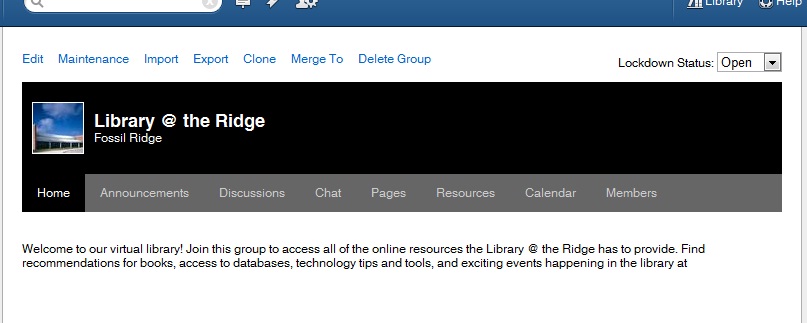
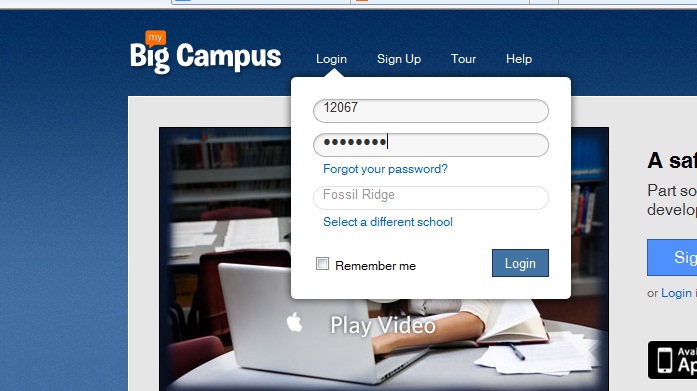 Groups–Getting started is easy-peasy! Teachers and students are already registered. In fact, when you click on your groups, you will see each class period and subject already organized into groups.Students will see each of their classes as well. Click on a group to enter the online classroom for that class period.
“Right now, I am loving the calendar feature. Each morning I put our physics plan for the day on the calendar and in the description portion I let the students that are absent know what they will need to do in order to make-up their missing work for the day. I no longer have to answer the dreaded question “I was absent yesterday, did I miss anything?” ~ Camren Robinson
 In addition to groups, teachers and students have access to Conversations, a messaging feature, Schoolwork–the feature that allows students and teachers to create and access many types of assignments. Bundles allow teachers to create online units of study to align with curriculum. Teachers can upload YouTube videos, pdfs, word docs, and jpegs to “bundle” together to create an engaging extended classroom.
Both students and teachers can maintain a blog through MBC. Blogs allow for a personalized platform to reflect on learning in any content area.
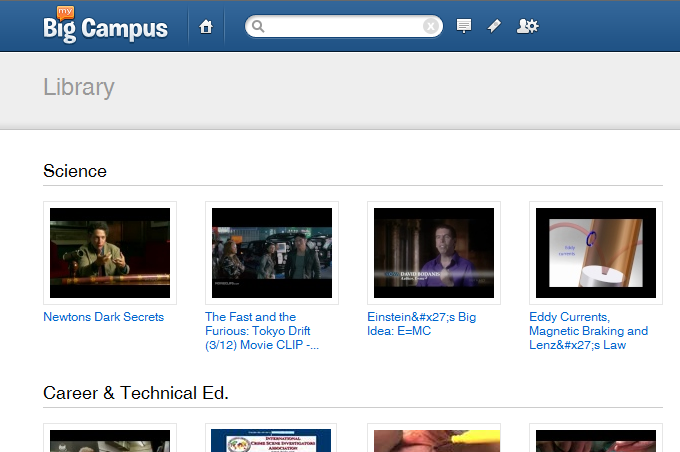
One of the most useful features in MBC is the Library. Teachers can search for content that has been uploaded into bundles to pull into a bundle for their class. They can also upload additional content and share with team members.
Tech Tuesday: Apps for Animation
Tech Tuesday: GoAnimate and Sock Puppets

 I’ve asked Madame Morgan to be my guest on the blog this week, and she graciously accepted.
 Why did you choose GoAnimate and Sock Puppets?
What obstacles, limitations, or surprises did you encounter?
What are the benefits to using applications and web 2.0 tools for animation?
- engages students in the learning process as they synthesize content into a digital story
- supports collaboration between students through the writing process: brainstorming, story-boarding, drafting, revising, publishing
- a task with an identified audience of their peers, other students, YouTube, etc. provides relevance along with rigor
We’d love to hear your thoughts regarding possible extensions and adaptations of this project in your content area! Feel free to leave any questions or thoughts for Mme. Morgan as well.
Tech Tuesday: Socrative, Mobile Classroom Response
Tech Tuesday (again…late, by 6 days! oy vey…): Socrative.com

My apologies for my tardiness. Last week, I was able to demonstrate a fantastic mobile app and website that allows teachers to create response activities for students. The fifty or so teachers who sat in on my demonstration were so very patient with my technology flubs and mishaps. I promised to be more organized in my blog post, so here it goes!
Overview:

Glolgster…not your ordinary poster project.
 Tech Tuesday #6: Glogster–Virtual Posters

Thanks to a very unwelcome visit from the stomach-flu fairy, I missed yesterdays Tech Tuesday posting :-(. So this week I am presenting Tech Tuesday on Wednesday!
Everyday I have teachers ands tudents asking me about technology tools for class presentations. They are eager to move beyond the traditional stand-and-present poster project or click-and-read PowerPoint (this makes my heart happy). Today I present Glogster, an interactive poster creator. Gloster allows the creator to create a mash-up of video, images, text, and graphics to create a virtual poster. View the VoiceThread tutorial below for a basic introduction of the educational version of glogster (edu.glogster.com).
-
Book reviews
-
Advertisements
-
“About me” presentations
-
Compare/ Contrast ideas or topics
-
Illustrate concepts
-
Extend and Deliver in VESTED
Have you or your students glogged? Tell us about it!
Tech Tuesday #5
Google Custom Search Engines
 |
I ❤ Google! I love Google forms, Google docs, Google doodles, Google Scholar…the list goes on and on. And, I have a furvent longing to one day attend Google Teacher Academy, if I could ever get around to making that dang application video…Today, I love Google Custom Search Engine (google.com/cse). Let me tell you why:
Yesterday, I caught wind of a little research project being conducted in our English II pre-AP classes over a little book called Things Fall Apart by Chinua Achebe. The teacher graciously allowed me to take a look at the assigment handout, which led students through a webquest, exploring various topics relating to Nigerian history, culture, and the author himself. On the assignment page, specific websites were listed for students to access depending on their topic. I saw a library-infiltration opportunity and pounced!
(Time-out for a little soap-box on teaching students information and research skills.)
 |
| Used with permission from the creator, Sean Gallo, http://www.seangallo.com |
You may or may not be familiar with the addage, “How do you eat an elephant?…One bite at a time!” This is the image that comes to mind when I am asked, “How do you teach high school students to be critical consumers of information, digital citizens, and researchers?” One “byte” at a time, friends.
More often than not, research seems to be a “stop-and-do” unit of exhausting, lengthy days in the library or computer lab. Students and teachers spend days and weeks pounding away at research topics, meeting minimal requirements for number of sources, note cards, direct quotes, working toward completing a checklist of research tasks rather than engaging in transformative, authentic inquiry. Rather than pushing research back and back until afetr “the test” or reserving it until May when we’re eager to mark the days off of our calendars until summer, my proposition is this: let’s teach narrow and in depth–one bite at a time.
Google Custom Searches allow us to streamline one part of the inquiry process (exploring and searching) so that students can dig deeper into another part of the inquiry process. Here’s what you can do as a teacher or librarian to help “cut the meat” for our young researchers:
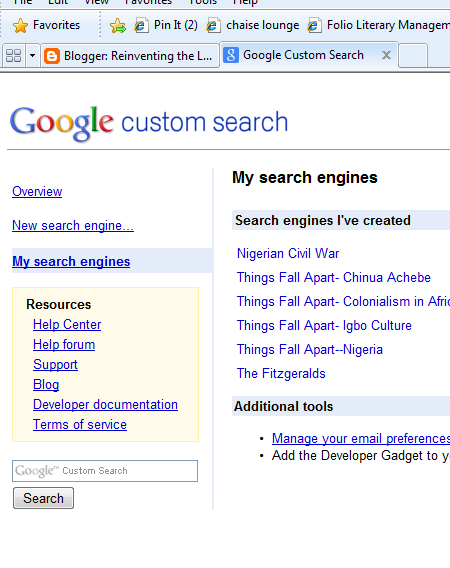
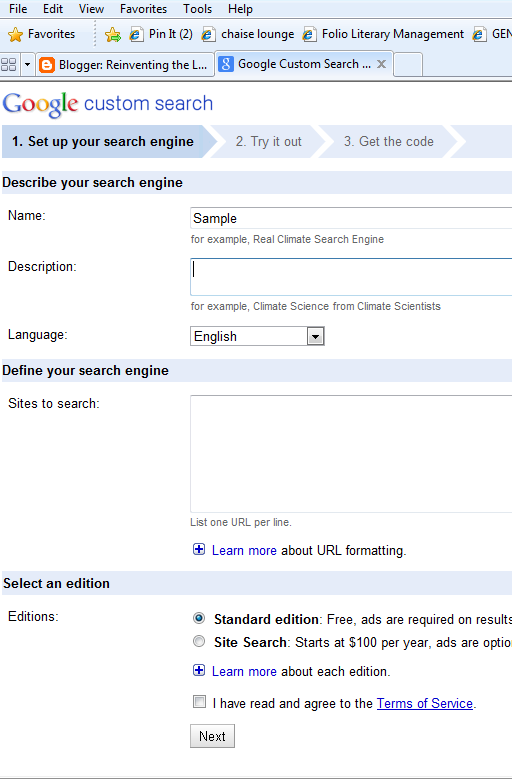 3. Give your search engine a title, description, and copy and paste websites that you have pre-selected as appropriate, credible sources for students to explore the topic in depth.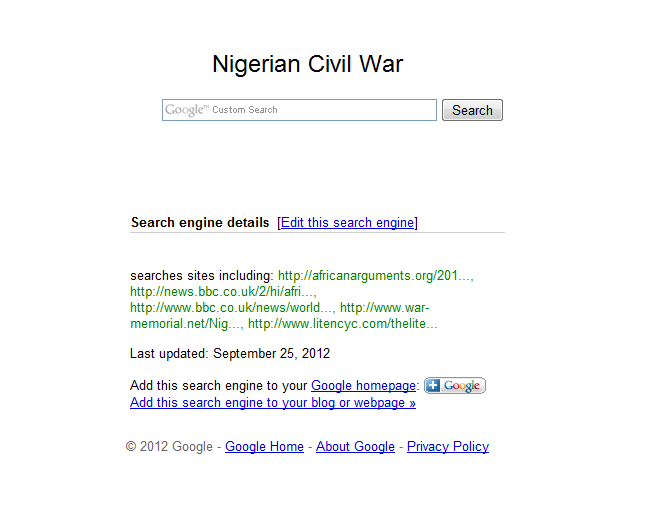
Sometimes we need to be a Momma-bird and do a little “pre-chewing” for our students to ease digestion (tired of the zoological metaphors??? Got it.) We can support students’ inquiry by providing them pre-selected sources so that they can then dedicate their attention to narrowing the focus of their inquiry, effective note-taking, documenting sources, synthesizing information, or presenting their understandings about the topic.
Would we want to give them a CSE everytime they do research? No, they need to learn to take the first bite, but perhaps we give them support in another area instead. Once they have all the smaller pieces mastered, then they can fully engage in the transformative power of inquiry-driven research…and fully enjoy the elephant in its entirety (couldn’t help it that one).
Talk to your librarian about collaborating to create Google Custom Search Engines for your next research adventure! Take a look at the library page I created to support students as they conducted research relating to Things Fall Apart. Special thanks to Christina Salcido and Erin Mathews for allowing me to crash their research party 🙂
Sneak peak for next week’s Tech Tuesday blog: Social bookmarking for student collaboration…Pinterest, Diigo, and Delicious
Check out some CSEs that I’ve created for various inquiry units:
VoiceThread: Online Collaborative Presentation Tool
Tech Tuesday #4: VoiceThread
 We’ve all been there. Sitting in a meeting, our eyes start to cross, ears start tuning out as another PowerPoint presentation clicks, clicks, clicks through various slides. Not that PowerPoint isn’t a terrific tool to present information, but with all of the options for today’s students to synthesize and publish information in unique ways, perhaps we should begin to consider it as an option rather than the default.
Today we’re exploring a free, web-based tool that allows students to create video presentations by mixing images, videos, documents, presentations, and comments (voice and text). VoiceThread (voicethread.com) allows the user to create a project and share it with collaborators. They can then create a project together but remotely, solving the problem of when and how they will find the time and resources to create a presentation in a single file.
To demonstrate the various tools and uses for Voice Thread, Here’s a VoiceThread on VoiceThread!
What possibilities do you see for VoiceThread with your students? Leave us your comments 🙂
Remind101: A Safe Communication Tool for Students, Parents, and Teachers
Technology Tuesday #2

 |
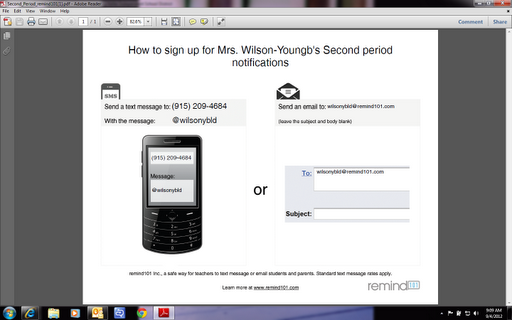
| Signing up is free and easy! |
 |
| Create classes with custom tags. students enroll themselves through text or email. Select which classes will receive the message. You can even tell it when to send the message if you want to schedule them in advance. |
Prezi and QR: The Next Wave of Information Delivery
Tech Tuesday #1
Welcome to the first edition of Tech Tuesday! Each Tuesday I will post a blog that highlights technology tools for instructional use. This week, I thought we’d take some time to explore two tools that I shared with the staff at Fossil Ridge High School as part of library orientation: Prezi and QR Codes.
Both of these tools have the potential to engage an audience by disseminating information through Web 2.0 tools and smart apps. Both are free (whoop!) and both are rather intuitive for the presenter and the audience.
 |
| Click on the logo to go to the site |
Prezi
To get staretd, go to Prezi.com, create an account and watch a couple of their easy-to-follow video tutorials. Start small and give yourself plenty of time to become comfortable with the tool before trying it out on an audience.
Check out some of these teacher Prezis for more ideas!
Class Introductions:
Quick Response “QR” Codes
 |
- ← Previous
- 1
- 2
 (Re)Inventing the Librarian